 SendMeDocs
What Your Clients See When You Send a Document Request
You're about to send your first document request and you're wondering — what's my client going to see? Is this going to confuse them? Will they think it's spam?
Here's exactly what happens on their end after you hit send.
The email they receive
Your client gets an email from your organization — not from "noreply@sometool.com." It includes:
- Your organization's name so they know it's from you
- Your personal message if you wrote one ("Getting started on your 2025 return — here's what I need")
- A big button to open the upload page
- A list of what you're asking for so they know what they're getting into before they click
Send via SMS instead? They get a text with a link. Shorter, but it gets opened faster — most people check texts within minutes.
Tip: The sender name is the first trust signal. If your client doesn't recognize it, they won't click. Use the name they actually know you by — "Smith CPA," not "Smith & Associates Financial Consulting Group LLC."
The upload page
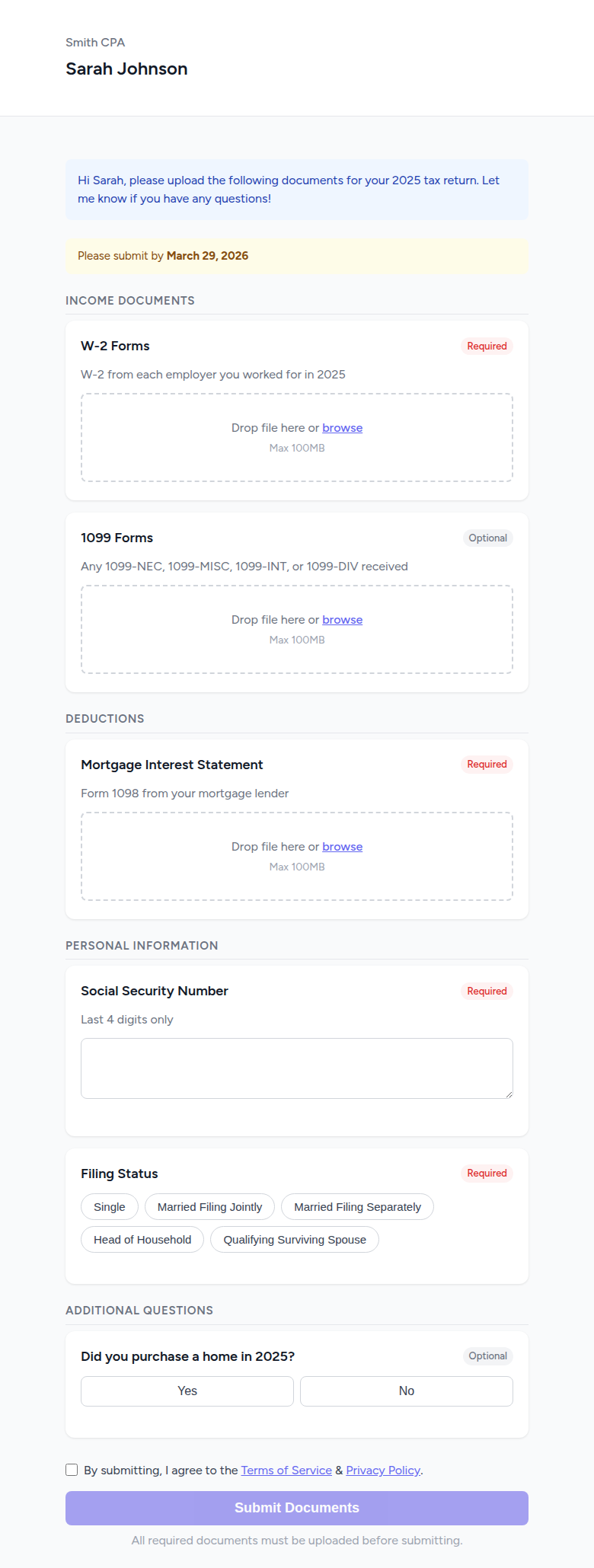
They click the link and land on a checklist — every item you asked for, laid out simply:
- The item name in plain English (whatever you wrote in your template)
- A short description explaining what the item is and where to find it
- Required or optional so they know what they can skip
- A status indicator — empty, in progress, or done
No login screen. No account creation. No "forgot password." They click the link and they're looking at the list. That's it.
Uploading a document

When they tap an item that asks for a file:
On mobile (which is most people): They can snap a photo or pick a file. Most clients just photograph their W-2 or bank statement with their phone camera — upload happens immediately and a checkmark appears.
On desktop: Standard file picker. Select a PDF or image, done.
If you allowed multiple files on an item (like W-2s for someone with two jobs), they can keep adding more. Each file shows up with its own indicator.
Filling in form fields
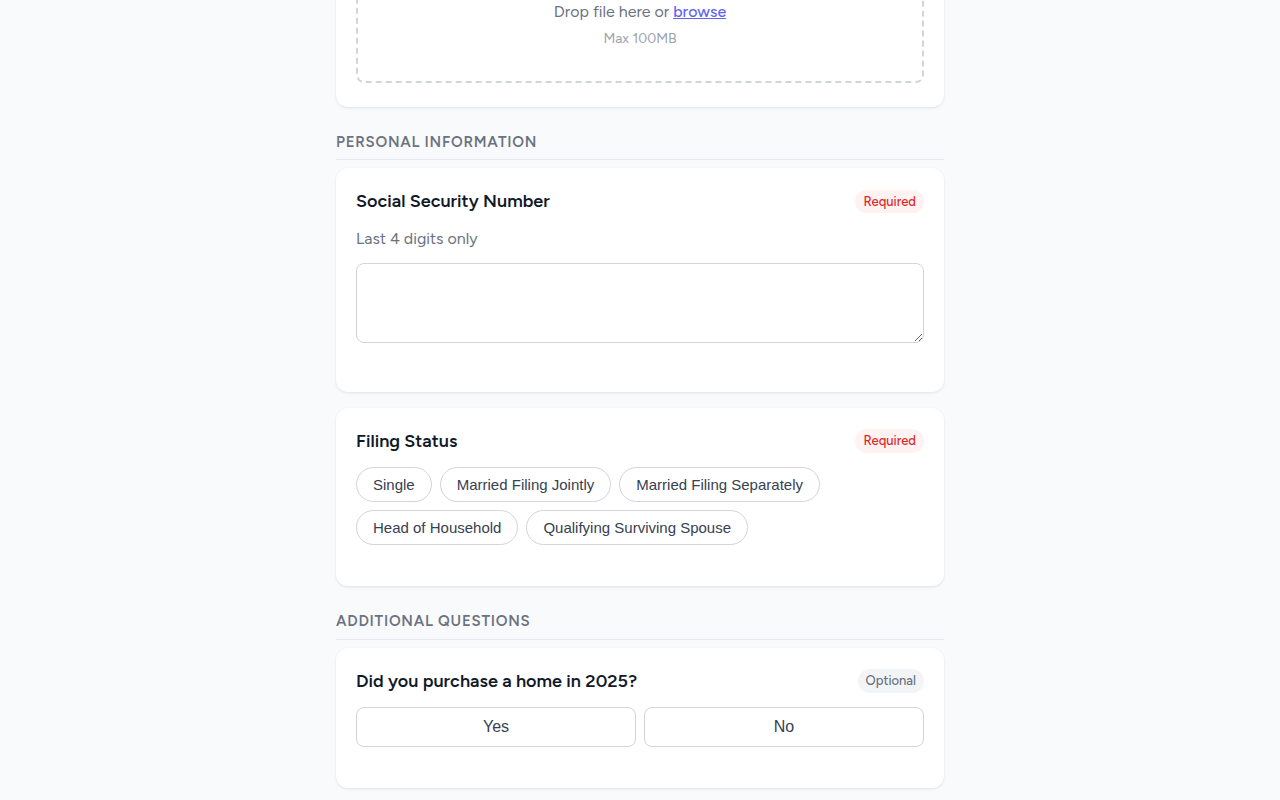
Not everything requires a file. Some items are just questions — text fields, dropdowns, yes/no toggles — and they fill them in right on the page.
For example:
- "Social Security Number" — they type it in
- "Filing status" — they pick from a dropdown
- "Did you purchase a home this year?" — Yes or No
These are faster for clients than scanning and uploading a document, and you get clean, structured data instead of squinting at a photographed form.
Progress saves automatically
If they upload 3 items and close the tab, those 3 are saved. When they come back — same link, any device — their progress is right where they left it. Completed items are checked off, the rest are still waiting.
This matters because almost nobody finishes in one sitting. They upload what they have on hand, then come back a few days later when the next 1099 shows up in the mail. No starting over, no re-uploading.
Submitting
Once they've completed the required items, they hit submit. You get a notification, your dashboard updates, and the documents are ready for you to review.
If they haven't finished the required items yet, they can't submit — but everything they've uploaded so far is already saved. They can see exactly what's still needed.
"Is this actually from my accountant?"
Your organization name is right on the upload page, which tells them "this is legit, my accountant sent this" rather than "this might be phishing."
The trust chain works like this: recognizable sender name in the email → your org name on the upload page → items that match what they'd expect you to ask for.
If a client calls asking "did you really send me this?" — totally normal the first time. "Yep, that's from us — click the link and you'll see the list of what I need" is usually enough. After the first request, they'll know what to expect.
Mobile vs. desktop
Most clients open the link on their phone — especially if you sent it by text. The upload page is built for mobile: big tap targets, camera integration for quick photos, and a simple scrolling checklist.
Desktop works just as well. Same experience, more screen space.
Questions your clients will ask
"Can I come back to this later?" Yes — the link stays active until the due date and progress saves automatically.
"I don't have my [document] yet." No problem. Upload what you have now and come back when the rest arrives.
"Can my spouse upload something?" Yes. The same link works for anyone who has it — they can forward the email or share the link.
"Is this secure?" Files are encrypted during upload and in storage. Only your firm can view them. The link expires after the due date. More detail in Collecting Sensitive Documents Without Another Client Portal.
"I uploaded the wrong file." You can reject the item with a note explaining what you need instead, and they'll get notified to re-upload.